4 DNA sequence alignment
4.1 Sequence retrieval and alignment in Geneious
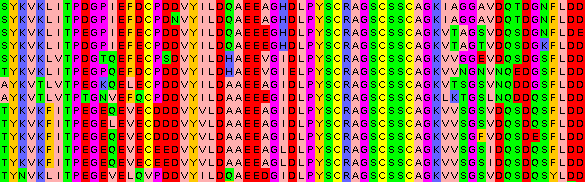
A large number of genomic loci have been sequenced for Cyanistes across multiple studies. For simplictiy, we will build a phylogeny based on a single molecular marker - the mitochondrial cytochrome-B gene. We will download the sequences from Genbank, using software Geneious.
4.1.1 Download sequences from Genbank.
Use Geneious (or your preferred software to deal with DNA sequences) to download CytB sequences. A list of the accession numbers for the sequences we want to download is available in this file.
In the NCBI search tool of Geneious, paste the accession numbers from the file above (all at once works).
Create a new folder called ‘CytB’ and drag the 70 CytB sequences to it.
4.1.2 Batch rename sequences.
Rename the sequence files using the information contained within the Genbank files. This facilitates visualisation of the tree (and is a crucial step to ensure we are all working with the exact same tip names in the phylogeny.
Select all the sequences at the same time and use the Batch rename function under ‘Edit’ in Geneious. Follow this scheme (unclick the tick box “Advanced” if needed):
Organism_Accession
4.1.3 Create an alignment for the CytB sequences
Select all sequences and use the ‘Muscle’ alignment function in Geneious (Tools: Align: Multiple Alignment: Muscle Alignment. If you get an error with Muscle, you can select Multiple Alignment: Geneious Alignment). This will create an alignment file within the folder where the sequences are located. The sequences and the alignment file are linked, which means changes you make directly in the sequences will automatically be made also to the alignment.
You can open the alignment to visualise if you want.
4.1.4 Export the alignment:
Export as Nexus (*.nex), selecting the option to replace spaces by underscores in the sequence names.